
Encode your Sessions
The Queue List is a powerful tool for managing and reviewing all your sessions in one
place. Each session in the Queue List consists of a source file, a dedicated configuration, and an output file
name. Once a source, a configuration and an output name have been properly created, configured and selected, you
can then easily add sessions to the Queue List using the large ADD Button in the Transport section.
When you add a new session, it automatically enters the ready mode, indicating that it’s ready to be encoded
with the start buttons. You have the flexibility to start encoding each session separately by clicking the small
Start Button next to its name, or start all ready sessions in the Queue List by pressing the large Start Button
in the Transport section.
If opting for the large Start button, it’s worth noting that up to four sessions can be processed
simultaneously, ensuring efficient encoding. Once the first batch of four sessions is completed, the next batch
of four sessions will automatically start processing.
The Queue List provides comprehensive information and various interactions to streamline your workflow. You can
easily track the status of each session, monitor progress and retrieve information as needed. With its
user-friendly interface, the Queue List empowers you to efficiently manage and review all your encoding sessions
in one centralized location.
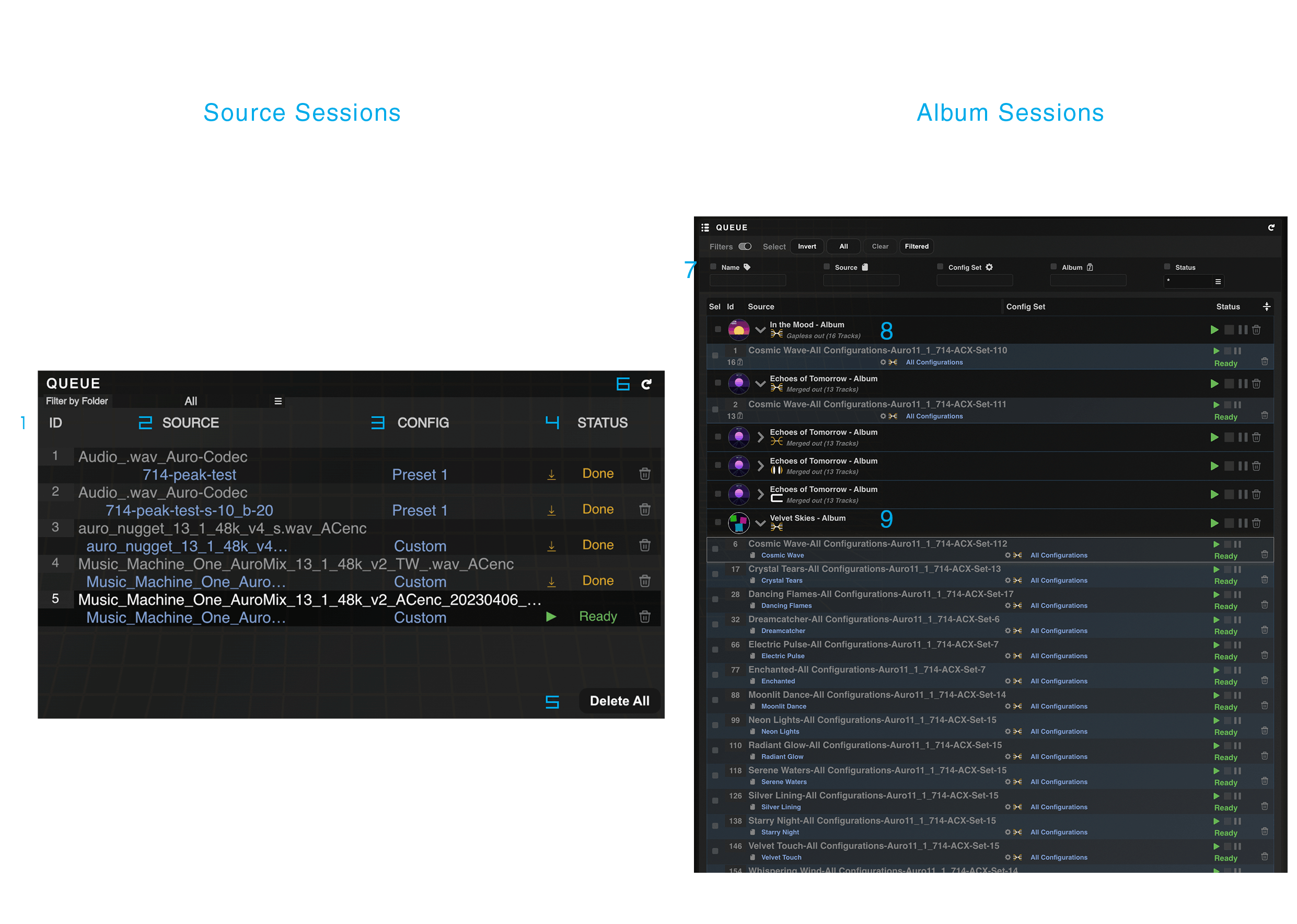
Figure 3 – 5 | Queue List
1. Session ID
The session ID is a unique identifier that distinguishes each session from others.
This ensures that each session is uniquely identified and avoids any confusion or ambiguity in tracking and
managing multiple sessions. The session ID helps in keeping the sessions organized. It allows users to
easily categorize and sort sessions based on their unique ID, making it convenient to locate and retrieve
specific sessions when needed.
2. Source Column
The Source Column displays the source that has been used for each session listed in
the queue list. Importantly, the source label functions as a button, allowing you to access the
corresponding data in the Source Menu. This feature enables you to select the appropriate source if
additional sessions are required.
3. Configuration Column
imilar to the Source column, the Configuration Column displays the configuration that
has been used for each session listed in the queue list. Notably, the configuration label also functions as
a clickable button, providing access to the corresponding data in the Configurations Menu. This allows you
to select the appropriate configuration, including custom configurations, if additional sessions are
required.
4. Status Column
The Status column is a crucial indicator of the current status of each encoding
session, and it is accompanied by specific buttons that are relevant to the status. There are six different
status options, and depending on the status, up to four different buttons may be enabled. This provides
users with quick and easy access to important actions such as starting, stopping, pausing, or resuming
encoding tasks, allowing them to efficiently manage and monitor the progress of their encoding sessions. The
availability of these buttons in the Status column streamlines the workflow and empowers users with greater
control over their encoding process, ensuring smooth and seamless operation.
During active encoding, the Status column displays a progress bar providing real-time
feedback on the encoding operation. The progress indicator identifies which processing stage is currently
executing and displays the completion percentage for that stage. When loudness analysis has not been
performed on the source material prior to encoding, the progress display first indicates the loudness
calculation phase, followed by the encoding phase once analysis completes. If loudness measurements already
exist for the source, the encoding phase begins immediately. Each processing stage—whether loudness
calculation or encoding—presents its own progress bar with percentage completion, enabling precise
monitoring of the session state throughout the encoding workflow. This granular progress reporting allows
operators to estimate remaining processing time and identify potential bottlenecks in multi-session encoding
operations.
• Ready Status: This status indicates that the encoding session
is ready to start and all settings are configured. Users can initiate the encoding process by clicking
on the small Start Button enabled in the Status column, or pressing the large Start Button in the
Transport section to start them all.
• Pause Status: This status indicates that the encoding session
is temporarily paused. Users can resume the encoding process by clicking on the small Start Button
enabled in the Status column or the large one in the Transport section.
• Stop Status: This status indicates that the encoding session
has been manually stopped by the user. Users can restart the encoding process by clicking on the “Small
Stop Button” enabled in the Status column.
• Done Status: This status indicates that the encoding session
has completed successfully. Users can review the encoded file and proceed with further actions as
needed.
• Error Status: This status indicates that the encoding session
has encountered an error. Users can troubleshoot and resolve the issue before restarting the encoding
process.
• Small Start Button: This button is enabled when the encoding
session is in the “Ready” status, allowing users to initiate the encoding process with a single click.
The Small Start Button also acts as a “resume” one when the session is in the “Pause” and “Stop” status.
• Small Pause Button: This button stops the execution of the
currently selected session in the Queue List and immediately deletes all current progress. It
temporarily suspends the progress of the queued tasks or processes, allowing for manual intervention or
further adjustments. If the execution is resumed after stopping, the encoding process will start from
the beginning again. .
• Small Stop Button: This button halts the execution of the
currently selected session in the Queue List, temporarily suspending the progress of the queued tasks or
processes. This allows for manual intervention or further adjustments without deleting the progress of
the encoding. When a session is paused, the encoding process will continue from the last position
reached before the pause.
• Small Bin Button: This button is permanently available and
allows users to remove the encoding session from the Queue List with a single click.
• Small Reveal/Download Button: The “Small Reveal/Download
Button” is a convenient feature that allows users to easily reveal or download the encoded file
associated with a completed encoding session. When an encoding session is in the “Done” status, users
can click on this button, located in the Status column, to reveal the location of the encoded file on
the system or initiate a download of the encoded file directly to their device when running on remote
computers. This makes it effortless for users to access the output of their encoding session and use it
for further processing or distribution purposes. The “Small Reveal/Download Button” provides a seamless
and efficient way for users to retrieve their encoded files and incorporate them into their desired
workflow or distribution channels, enhancing their overall encoding experience.
5. Delete All Button
The Delete All Button is a powerful feature that allows users to delete all the
sessions present in the Queue List, regardless of their status. It provides a quick and efficient way to
clear the encoding queue and remove any pending or completed sessions. However, it is important to note that
this action is irreversible and permanent, as it will also delete the associated encoded files along with
the session data. Therefore, caution should be exercised when using the Delete All Button to avoid
accidental deletion of important encoded files. Users should double-check the queue and ensure that they
have made appropriate backups before proceeding with this action to avoid unintended loss of data.
Additionally, a confirmation window is prompted to ensure that users confirm their intention to delete all
sessions before the action is executed, adding an extra layer of caution to the process.
6. Refresh Button
To refresh the Queue List and check if the resulting encoded files are still in their
expected location, it is possible to click on the “Refresh” button located at the top right corner of the
Queue List. This will update the list with the latest status information and check if the files are still
available in their expected location.
If the expected files are missing, the status of the corresponding sessions will be set to “Missing”.
Note that it is still possible to click on the Source and Config labels in each session in order to retrieve
the original Source and Config that has been used for a session in the “Missing” status, and ultimately
re-encode the missing files if necessary.
7. Filter Controls
The Queue List provides granular filtering capabilities to isolate specific sessions
based on multiple criteria. Filtering becomes necessary when the queue contains numerous sessions with
varying attributes, requiring selective visibility to maintain workflow efficiency. The filter interface is
located at the top of the Queue Panel and supports filtering by five distinct parameters: Name, Source,
Configuration, Album, and Status.
Each filter operates independently, allowing the construction of compound filter queries to narrow session
visibility according to precise requirements. Filter fields accept text input for Name, Source,
Configuration, and Album parameters, while the Status parameter provides discrete state options
corresponding to the session status values described in section 4. When a filter is applied, only sessions
matching the specified criteria remain visible in the Queue List, temporarily hiding non-matching entries
without affecting their underlying state or data.
Filter criteria persist throughout the session until manually cleared, enabling repeated operations on the
filtered subset. Multiple filters can be combined to refine the query further; for example, filtering by a
specific Configuration and then by Ready status isolates only those sessions awaiting encoding with the
selected configuration. This multi-parameter filtering structure allows precise queue management in complex
encoding workflows involving diverse source material and configuration sets.
8. Album Settings Indicator
The Album Settings Indicator displays the playback mode applied to sessions
originating from album sources. This indicator appears as a label showing either “Gapless” or “Merged”,
corresponding to the album playback configuration defined in the Source Menu.
The distinction between these modes reflects different technical approaches to album track continuity.
Gapless mode preserves individual track boundaries while eliminating silence between consecutive tracks,
maintaining discrete file outputs with seamless transitions during sequential playback. This mode is
appropriate for albums requiring track-level navigation while preserving the continuous listening experience
intended by the content creator.
Merged mode consolidates all album tracks into a single continuous audio stream, eliminating track
boundaries entirely. This approach is suitable for live recordings, concept albums, or classical
performances where the artistic intent demands uninterrupted playback without the possibility of track-level
navigation. The merged output generates a single encoded file representing the complete album as one
continuous session.
The indicator provides immediate visual confirmation of which album processing mode has been applied to each
session, ensuring that the encoded output structure aligns with the intended delivery format. This
visibility is particularly important when managing multiple album sessions simultaneously, where different
albums may require different playback continuity strategies.
9. Album Folding Controls
Album sessions in the Queue List support folding and unfolding operations to manage
visual complexity when working with multi-track albums. Each album appears initially as a collapsed entry
representing the complete album session. Unfolding the album reveals the individual tracks contained within,
where each discrete track corresponds to a separate encoding session derived from the album source.
This hierarchical display structure addresses the interface management challenge presented by album sources
containing numerous tracks. When folded, an album occupies a single row in the Queue List, displaying
aggregate information about the entire album session. Unfolding expands the entry to show all constituent
tracks as child entries beneath the parent album row, each with its own session ID, status, and control
buttons.
The fold/unfold operation is purely a display mechanism and does not affect the underlying session data or
encoding behavior. Folding an album hides its discrete track sessions from view but does not remove them
from the queue or alter their processing state. This allows efficient navigation of large queues containing
multiple albums without sacrificing access to individual track control when necessary.
Individual track visibility becomes relevant when per-track status monitoring is required, when specific
tracks need to be removed or re-encoded independently, or when verifying track-level encoding parameters.
The folding control provides a toggle mechanism to switch between the compact album-level view and the
expanded track-level detail view, enabling the operator to adjust the interface density according to the
current workflow requirements.