
System Modes and Global Settings
The Auro-3D Encoder Service provides a unified interface for managing system-level
operational modes and global parameters that influence the behavior of all encoding sessions. These settings
establish default behaviors for metadata extraction, loudness measurement, source scanning, and session
management. The interface is organized into five distinct sections accessible via the top navigation bar:
System Modes, Global Settings, Session Management, Quick Look Window, and Manual Access.

Figure 2.0 – 1 | Global Settings Interface Overview
1. System Modes
The System Modes section provides access to operational mode selectors that determine
the functional context of the encoder service. The Local Mode indicator confirms that the encoder is
operating on the local system rather than in a remote or cloud-based environment. This mode designation
affects file system access patterns, resource allocation strategies, and output file handling mechanisms.
When operating in Local Mode, all encoding operations execute directly on the host system, and output files
are written to locally accessible storage paths.
2. Global Settings
The Global Settings section consolidates parameters that establish system-wide
defaults for scanning, loudness analysis, and metadata extraction. These settings apply to all newly added
sources and influence the automatic behaviors triggered when sources are imported into the encoder service.
The configuration is organized into three functional subsections: Scanning Management, Loudness Management,
and Metadata Management.
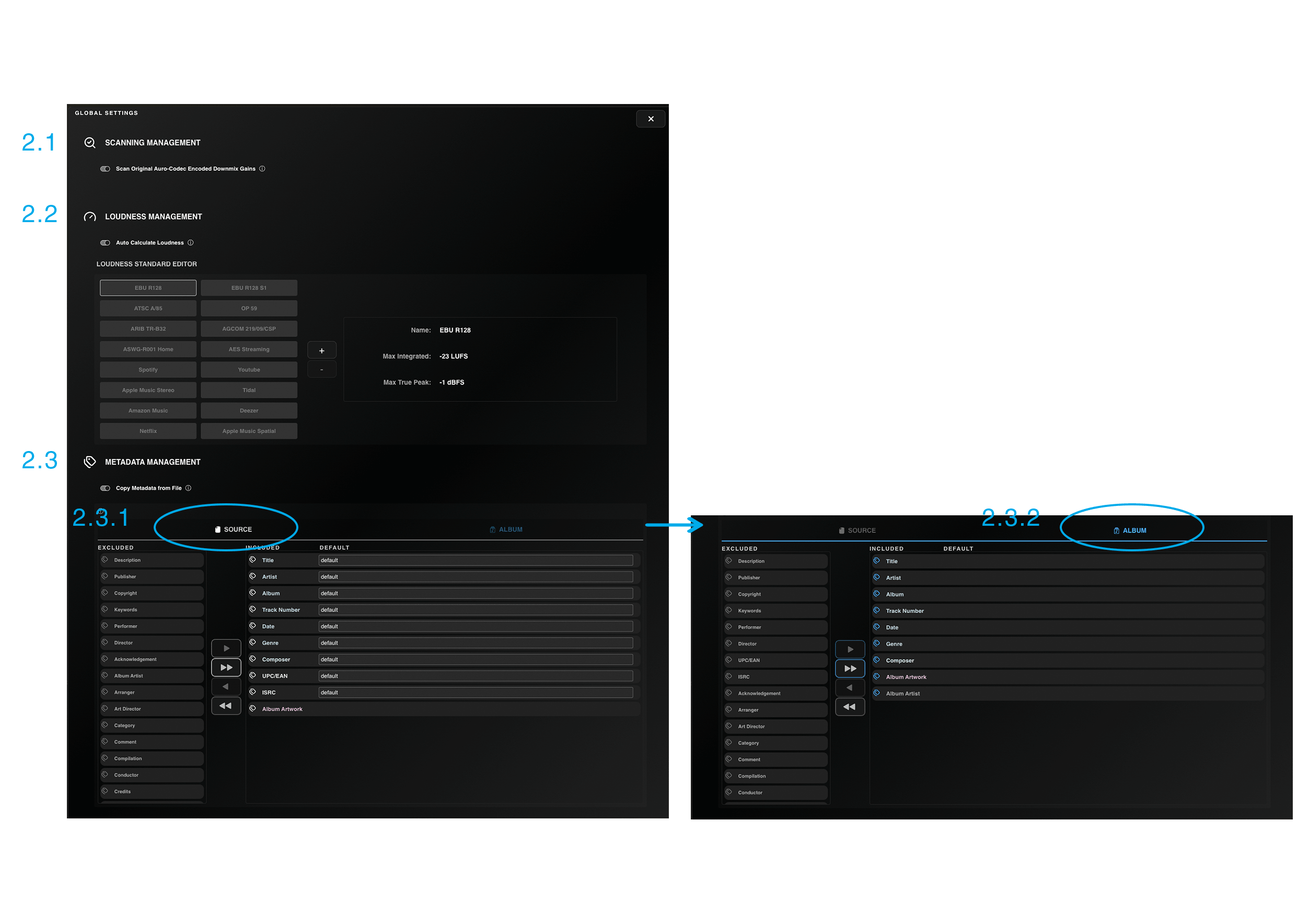
Figure 2.1 – 1 | Global Settings Panel
2.1 Scanning Management
The Scanning Management subsection controls how the encoder analyzes Auro-Codec
encoded sources during import. This functionality addresses the requirement to retrieve previously encoded
downmix gain parameters when re-encoding or modifying existing Auro-Codec files.
• Scan Original Auro-Codec Encoded Downmix Gains: When enabled,
this toggle activates a scanning process that extracts embedded downmix gain values from Auro-Codec
encoded source files. The extracted values populate the Downmix Gain parameters in the Bed Element tab
of the source edit view, preserving the original downmix configuration specified during initial
encoding.
This automation eliminates the need for manual gain entry when working with previously encoded material
and ensures that re-encoding operations maintain consistent downmix characteristics. The scanning
operation reads the Auro-Codec bitstream metadata to retrieve the Lower Gain, Height Gain, and Top Gain
values that were applied during the original encoding process. These values directly affect the
signal-to-noise ratio and spatial balance of the encoded surround carrier, making accurate retrieval
essential for maintaining encoding fidelity across multiple processing generations.
Note: Enabling this option also triggers an automatic loudness calculation for the
scanned file. This combined operation ensures that both downmix characteristics and loudness compliance
data are available immediately after source import, streamlining the workflow for re-encoding scenarios
where both parameters are typically required.
2.2 Loudness Management
The Loudness Management subsection provides controls for automated loudness analysis
and the definition of custom loudness standards. These parameters determine when loudness measurements occur
and which compliance targets are available for selection during configuration.
• Auto Calculate Loudness: This toggle controls whether the
encoder performs automatic loudness analysis on newly added sources. When enabled, the system measures
integrated loudness (PLI) and true peak (TP) values for every source imported into the encoder, making
this data immediately available for compliance validation and normalization operations. The measurement
occurs during source import, before encoding begins, allowing the operator to evaluate loudness
characteristics and make informed decisions about normalization requirements.
When disabled, loudness analysis is bypassed during source import, and no measurement data is generated
unless explicitly required by other system behaviors. However, certain configuration settings override
this preference. If a normalization option is enabled in the configuration (Track or Album normalization
in the Shared Tab), loudness will still be calculated during the encoding process regardless of the Auto
Calculate Loudness setting, since normalization requires loudness data to function. Similarly, enabling
the Measure Output option in Auro-Codec or Convert configurations forces loudness measurement of the
output file after encoding completes, independent of this global setting.
The interaction between this global toggle and configuration-specific loudness requirements reflects the
system’s layered parameter hierarchy: global settings establish default behaviors, while
configuration-level parameters define requirements that override those defaults when necessary. This
architecture allows operators to disable automatic loudness measurement for general workflow efficiency
while ensuring that loudness data is always available when technically required by encoding or
normalization processes.
• Loudness Standard Editor: The Loudness Standard Editor
provides an interface for defining and managing custom loudness compliance targets beyond the predefined
industry standards. This functionality addresses scenarios where delivery specifications require
loudness
targets not covered by standard broadcast or streaming specifications (such as EBU R128, ATSC A/85, or
platform-specific requirements).
The editor displays a table of available loudness standards, including both built-in industry standards
and user-defined custom standards. Each standard entry specifies a target integrated loudness value (Max
Integrated LUFS) and a maximum true peak level (Max True Peak). These values establish the compliance
thresholds used by the encoder’s validation and normalization systems.
Custom standards can be created using the “+” button, which opens an entry form requiring three
parameters: a descriptive name for the standard, the maximum integrated loudness target in LUFS
(Loudness Units relative to Full Scale), and the maximum true peak level in dBTP (decibels True Peak).
Once created, custom standards appear in the Standard Drop Down Menu within the Loudness section of the
Configuration Shared Tab, making them available for selection alongside built-in industry standards.
Custom standards can be deleted using the “-” button. Note that only user-defined standards can be
removed; built-in industry standards are protected from deletion to ensure that common broadcast and
streaming compliance targets remain consistently available. This protection prevents accidental removal
of widely used standards that other operators may depend on in shared or multi-user environments.
The ability to define custom loudness standards accommodates specialized delivery requirements such as
internal studio specifications, regional broadcast variants, client-specific targets, or experimental
delivery formats. Custom standards function identically to built-in standards within the encoding
workflow: they appear in configuration selection menus, drive compliance validation in the Statistics
Panel, and serve as normalization targets when Track or Album normalization modes are enabled.
2.3 Metadata Management
The Metadata Management subsection controls how the encoder extracts and applies
metadata from source files, and defines the metadata schema used for sources and albums. These settings
establish which metadata fields are populated automatically during import and which fields are available
for manual entry in the source and album edit views.
• Copy Metadata from File: When enabled, this toggle activates
automatic metadata extraction from each newly added source file. The system scans the source file’s
embedded metadata tags (such as ID3 tags in audio files or BWF metadata in WAV files) and extracts
available information including artist name, track title, album name, genre, year, and other standard
fields. The extracted data is then automatically populated into the corresponding metadata fields in the
Metadata tab of the source edit view.
This automation eliminates the need for manual metadata entry when source files already contain properly
tagged information, streamlining the workflow for batch processing of professionally tagged content.
When disabled, metadata fields remain empty after source import, requiring manual entry if metadata is
required in the encoded output. The extracted metadata does not override manually entered values; if a
field has been manually edited before the source is scanned, the manual entry is preserved.
2.3.1 Source Metadata Table
The Source Metadata Table defines which metadata tags are available for use at the
source level and establishes default values for these fields. This table functions as a metadata schema
template that determines the structure of the metadata interface presented in the source edit view.
Each row in the table represents a single metadata field, with columns for the metadata tag name (such as
Title, Artist, Album, Genre, Date, or custom field names) and a default value entry field. When a new
source is created or imported, the system generates metadata fields corresponding to all entries in this
table, pre-populating any fields that have defined default values.
Default values serve two purposes: they provide consistent fallback data when source files lack embedded
metadata, and they establish organizational standards for metadata entry in production environments where
certain fields should contain standardized values (such as a studio name, project identifier, or copyright
notice). Default values can be overridden on a per-source basis in the source edit view without affecting
the global default definition.
The ability to customize the metadata schema allows the encoder to accommodate diverse metadata
requirements across different production contexts, from minimal tagging for internal archival purposes to
comprehensive metadata sets required for commercial distribution or broadcast delivery. Custom metadata
fields can be added to support non-standard tags or proprietary metadata requirements specific to
particular delivery platforms or organizational workflows.
2.3.2 Album Metadata Table
The Album Metadata Table defines the metadata fields available when creating or
editing albums within the encoder service. This table establishes the metadata schema used for album-level
information, which applies to all tracks within an album and is typically used for multi-track releases
where consistent album-wide metadata is required.
Similar to the Source Metadata Table, each row represents a metadata field that will be available in the
album edit view. However, unlike the source-level table, the album schema does not support default value
definitions. This design reflects the fact that album metadata is inherently content-specific and varies
significantly between different albums, making default values less meaningful than at the source level.
Album metadata must be entered manually in the album edit view for each album.
Common album-level metadata fields include album title, album artist, release date, label, catalog number,
UPC/EAN codes, genre, and compilation status. These fields provide the contextual information that groups
individual tracks into a cohesive album entity and supplies the metadata required for distribution through
digital platforms, physical media production, or broadcast systems.
The separation between source-level and album-level metadata schemas reflects the hierarchical relationship
between tracks and albums: sources contain track-specific information that may vary between tracks, while
albums contain release-level information that applies uniformly to all tracks within the album. This
distinction ensures that metadata is organized according to its appropriate scope and prevents redundant
entry of information that should be shared across multiple tracks.
3. Global Wipe Options
The Global Wipe Options section provides batch operations for clearing queue
sessions, removing sources, and deleting albums. These controls address the need for efficient cleanup
operations when resetting the encoder service for new projects or removing outdated content. Four distinct
operations are available via checkbox selectors that define the scope of the wipe action:
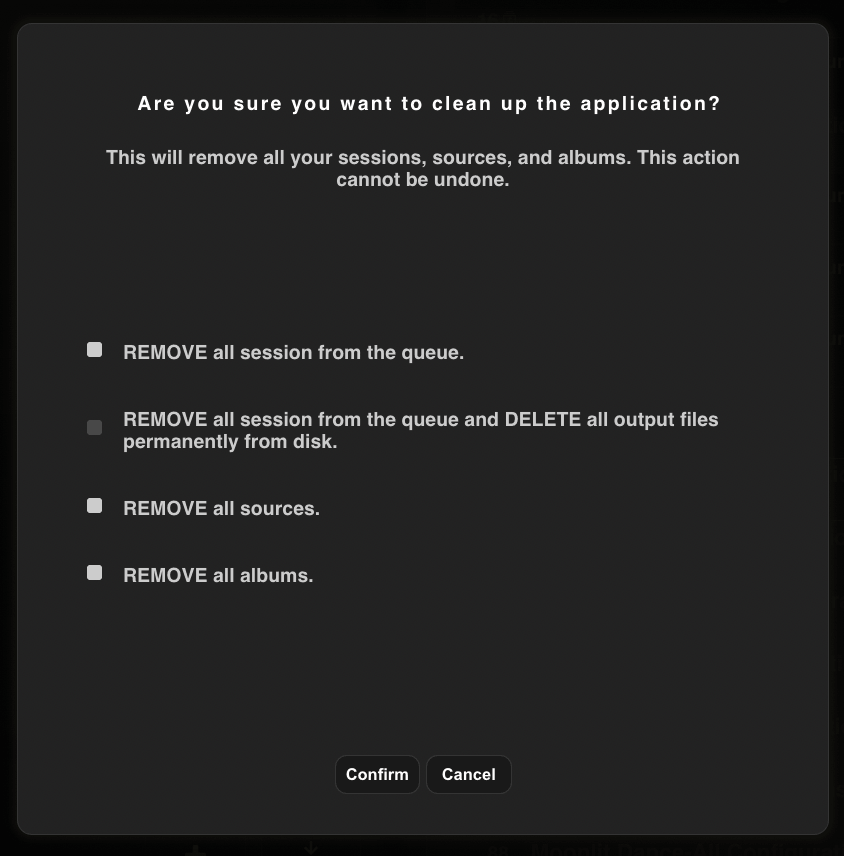
Figure 3.1 – 1 | Session Management Controls
• Remove All Sessions from the Queue: This operation clears
all encoding sessions from the Queue List without affecting source files, configuration sets, or
previously encoded output files. The action removes session records from the queue database, including
sessions in Ready, Pause, Stop, Done, and Error states. This cleanup is appropriate when resetting the
queue for a new batch of encoding operations while preserving the source material and configuration
definitions for reuse. Note that removing sessions from the queue does not delete the output files that
were generated by completed sessions; those files remain on disk at their specified output locations.
• Remove All Sessions from the Queue and Delete All Output Files Permanently from Disk:
This operation extends the previous cleanup by also permanently deleting all output files generated by
the removed sessions. The deletion targets all encoded files written to disk by sessions in the Done
state, removing them from the file system to reclaim storage space. This combined operation is
appropriate when clearing the system for a new project where previous encoding results are no longer
needed and storage recovery is required. The deletion is permanent and cannot be undone; output files
are removed from the file system and cannot be recovered through the encoder interface.
• Remove All Sources: This operation clears all source files from the source database,
removing the source records, imported media references, and all associated metadata, loudness
measurements, and configuration parameters defined at the source level. This cleanup does not delete the
original media files from their import locations; it only removes the source records that reference
those files within the encoder service. Sources can be re-imported if needed by adding the media files
again through the Source Menu. This operation is appropriate when resetting the encoder for a new
project with entirely different source material.
• Remove All Albums: This operation clears all album records from the album database,
removing album definitions, track associations, and album-level metadata. This cleanup does not delete
the individual sources that were grouped into albums; those sources remain in the source database unless
separately removed via the Remove All Sources operation. Removing albums only breaks the album grouping
structure, allowing the underlying sources to be reorganized into new albums or used as standalone
sources. This operation is appropriate when the album structure needs to be redefined without
re-importing the underlying source material.
Important: All Global Wipe operations are destructive and
cannot be undone. A confirmation dialog is presented before executing any of these operations to prevent
accidental data loss. Multiple checkboxes can be selected simultaneously to execute combined wipe
operations in a single action. When multiple operations are selected, they execute in a defined order:
sessions are cleared first, then output files are deleted (if selected), followed by source removal, and
finally album removal. This sequence ensures that dependencies are resolved correctly and prevents orphaned
references in the database.
4. Quick Look Window
The Quick Look Window provides a modal preview interface for inspecting source media
content without leaving the encoder service. This feature enables rapid verification of source file
characteristics, audio content, and embedded metadata before initiating encoding operations. The Quick Look
interface displays waveform visualizations, metadata tags, technical specifications (sample rate, bit depth,
channel count), and playback controls for auditioning the audio content. This preview functionality
streamlines quality control workflows by allowing operators to confirm that imported sources match expected
specifications without requiring external media player applications.
5. Link to Manual
The Link to Manual button provides direct access to the complete technical
documentation for the Auro-3D Encoder Service. This link opens the online manual in the system’s default
web browser, presenting the full documentation resource with search functionality, cross-referenced
sections,
and version-specific information corresponding to the currently installed encoder version. The manual serves
as the authoritative reference for operational procedures, parameter definitions, workflow guidelines, and
troubleshooting procedures.