
Select and Create your Source
The Source Menu provides the ability to manage, organize and configure audio sources according to specific settings and requirements. This section of the software offers essential functions for selecting and uploading audio WAV or ADM files for encoding, along with integrating an optional TOC (Table of Contents) .xml file into the source that further simplifies the encoding process for multiple associated tracks. Once saved, these files are cataloged as sources within the system.
A source consists of a Main Program, accessible via the Programs Tab (C), including one or more Elements, found in the Elements Tab (B), each individually linked to Media Files, available in the Media Tab (A), and optionally accompanied by Metadata that is parsed or defined in the Metadata Tab (D):

Figure 3.1 – 1 | Source Menu Generic Overview
Creating a new source typically involves uploading the necessary media files (A), associating them with relevant elements (B), deciding whether to include these elements in the main program or not (C), with or without associated metadata (D):
(A) Initially, each source hosts one or more media files, which are uploaded via the Media Tab. Supported file formats include multi-channel WAV, mono-channel WAV, and dual multi-channel WAV (with the mix separated into lower and upper interleaved files), as well as ADM (.wav or bwf) and TOC (.xml) files. Each media can be supplemented with source settings such as layout, channel order, and more.x
(B) Next, in the Elements Tab, all existing media files within the source can be linked to Bed or Object Elements. Bed Elements include Downmix, Auto Gain, and optional Remap settings, while Object Elements are accompanied by Levels, Position, and Spread parameters. It’s noteworthy that for ADM files, the corresponding Bed and Object elements are automatically retrieved and generated upon uploading the ADM file (read only).
(C) Next, these elements can be optionally included in the main source program via the Programs Tab.
(D) A source can include Metadata defined in the Metadata Tab. The original file metadata, even the cover image, can be automatically parsed by enabling “Copy Metadata from File” in the global settings (see Chapter 3.9). The metadata included in the final encoding is managed through the “Metadata Management” table in the global settings.
1. Main View
The Main View of the Source Menu provides an overview of all available sources that can be combined with one or more selected configuration sets (see Chapter 3.2) and a single output name configuration (see Chapter 3.3) to create customized encodings. For a detailed view or to modify a source’s configuration and settings, switch from the Main View to the Edit View, where each source can be edited and configured (see Chapter 3.1.2).
1.1 Source Menu
The Source Menu enables the creation, editing, duplication, and deletion of sources. It also provides options to select sources for adding to the Queue List and filter them by name. The table displays all available sources along with key details, such as length, loudness calculation progress, and the number of tracks if a TOC file is associated with the source:

Figure 3.1.1.1 – 1 | Source Menu – Main View
1.1.1 Management Buttons:
•  Rescan All Button: The Rescan All button verifies that all existing sources still have their referenced media files available on the local system. This applies to all source types, whether organized in a folder structure or added as individual files. If any media files are missing (for example, audio files .wav or image files .jpeg), the system clearly indicates this in the Source Table within the Main View, as well as in the Media Tab in Edit View, making the source unusable until the path issue is resolved – “One or more files are missing“. Note that the Rescan All button updates the folder contents if new sources have been added to the corresponding physical directory, automatically creating these newly added files as new sources.

Figure 3.1.1.1.1 – 1 |Rescan All Button revealing a missing media within an existing source (Main and Edit Views)
•  Add Folder Button: The Add Folder button allows creating multiple sources at once from the audio media files contained in a selected folder on the system. After selection, the system automatically generates corresponding sources, which appear individually in the Source Table. The original folder structure is visually represented in the table, with parent folder icons shown in white and subfolder icons in yellow. Only interleaved WAV and ADM files within the folder are scanned. These files can be quickly uploaded, configured, and added to the encoding queue in a single operation. When used together with the output options “Preserve Folder Structure” in the Folder Structure Tab of the Output Menu (see Chapter 3.3), the original folder structure can optionally be preserved, organizing the resulting encodings relative to their original folder structures. Note that the Source Table is not a real-time file manager; it serves as a visual aid to help identify files according to their original organization and to maintain that structure in the final output. Nevertheless, it is still perfectly possible to update a physical folder by adding new sources to it and then manually rescanning the folder in the Source Table in order to include the newly added sources in their expected locations within the folder structure.

Figure 3.1.1.1.1 – 2 |Automatically creating sources from an added folder
Sources organized within a folder structure offer additional convenience, such as the ability to select all sources within a folder or subfolder at once by clicking the selection button next to the folder or subfolder icons. It is then possible to swiftly choose one or more configuration sets and an output naming configuration to add the selected sources to the encoding queue. Each parent folder can also be rescanned individually by clicking the small rescan icon located in the same row as the corresponding folder:
⚠️ When adding a folder containing multiple ADM files, each resulting source must be manually unlocked. Additionally, it is currently not possible to apply certain parameter values to multiple sources simultaneously. This limitation is a known inconvenience and will be addressed in future versions of the software.
•  New Source Button: The New Source Button lets create an individual source manually. Clicking it switches to the Edit View with a blank new source, allowing the addition and configuration of new sources according to the desired settings.
•  Edit Button: The Edit Button transitions the Source Menu from Main View to Edit View, allowing modifications to the selected source. This includes editing the Source Name, Layout, Channel order of included Media Files, configuration of related Element parameters, and Main Program content. If the source is currently in use by any encodings in the Queue List, a “SOURCE IN USE” label appears in the top left corner of the Edit View, and a padlock icon replaces the edit icon in the source table in Main View.
 This design prevents accidental changes or deletions of sources involved in ongoing encoding tasks.
1.1.2 Select Buttons
In addition to the selection checkboxes within the Source Table in the Source Main View, a set of Select Buttons is available to facilitate more advanced selection methods:
• Select Invert Button: Unselects the currently selected sources in the Source Table and selects the currently unselected ones.
• Select All Button: Selects all existing sources in the Source Table.
• Select Clear Button: Unselects all existing sources in the Source Table.
• Select Filtered Button: Selects the sources that match the current name set in the Filters Field.
1.1.3 Filters Field
The Filters Field allows for filtering of existing sources in the Source Table within the Main View. Currently, the available filter is the Name Filter, which can be activated by selecting the checkbox next to the ‘Name’ label under the Filters section. Once the Name checkbox is selected, a custom word can be entered in the Filter Field, and upon pressing the ‘Select Filtered’ button, only sources matching the specified name will be displayed in the Source Table.
1.1.4 Source Table
The Source Table provides functionality to select, edit, and delete existing sources. Its simple interface facilitates the encoding workflow, enabling quick and efficient addition of selected sources to the encoding process via the prominent ‘ADD’ button in the Control Section. In combination with the current configuration in the Configurations menu, these added sources create new sessions in the Encoder Queue list, awaiting encoding initiation by pressing the large ‘START’ button in the Control Section. The Source Table consists of five columns, each serving a distinct purpose:

Figure 3.1.1.1.4 – 1 | Source Table in the Main View
• 1.1.4.1 Select Column: Allows selection of sources to be added to the Queue List. Selected sources can also be deleted or duplicated via the Bulk Actions.
• 1.1.4.2 Edit Column: Opens the Edit View of the corresponding source. If the selected source is currently in use by any encodings in the Queue List, a “SOURCE IN USE” label is displayed at the top left corner within the Edit View, along with a padlock icon replacing the edit icon in the Source Table in the Main View.
These visual indicators highlight that the source is currently inaccessible for deletion or modification until it is no longer in use in the Queue List. This design feature prevents accidental alterations or deletions of sources engaged in ongoing encoding tasks.
• 1.1.4.3 Source Name Column: Displays the custom Source Name of the corresponding source. Additional information, such as the number of tracks, may appear in grey text.
 The number of tracks is relevant when the source includes a TOC file (Table of Contents), which facilitates the separation of multiple tracks from a single media file.
• 1.1.4.4 Layout Column: Displays the original layout of the primary audio media file included in the corresponding source. Note that a single source cannot contain media files with different layouts or sample rates, and the system supports only one bed element per source. A warning icon “⚠️” may appear next to the Layout Column to draw the user’s attention. This indicates that additional actions are required in Edit Mode, such as defining a missing channel order or assigning an unlinked media file to an element.
• 1.1.4.5 Length Column: Displays the duration of the longest media file included in the corresponding source.
• 1.1.4.6 PLI Column: Displays the pending calculation and, once completed, the resulting Program Loudness Integrated (PLI) value in LUFS. Note that the automatic calculation of sources can be disabled in the global settings (see Chapter 3.9). The loudness calculation is a process that may take longer for large source files. Note that the source can still be added to the Queue List while its loudness is being calculated. As a reminder, the current version of the software supports only one program per source and therefore displays the loudness values of that single program, whether here in the Source Table or in the Statistic Panel (c.f. chapter 3.5).
• 1.1.4.7 Delete Column: Enables the permanent deletion of the corresponding source. The Delete Column is topped by a special “Max Height Toggle Button”:
 This button toggles between a fixed and dynamic table height. When set to a fixed height, the table remains within a specific size, requiring scrolling to view all the sources. In dynamic mode, the table automatically adjusts its height to display all available sources, providing an instant overview of the total number of entries without the need for scrolling. This feature is particularly useful when working with large datasets, as it allows for quick visual access to the complete list of sources.
1.1.5 Bulk Actions
Bulk Actions allow the application of specific actions to multiple selected sources simultaneously.
• The Remove Button: Permanently removes all selected sources from the Source Table (without deleting their corresponding media files on the local system). Note that sources marked as “SOURCE IN USE” cannot be deleted until they are no longer in use.
• The Duplicate Button: Allows duplication of all selected sources. Each duplicated source is added to the Source Table with a new identifier, preserving the original data while creating a copy for further modification or use. Note that when duplicating sources within a folder structure, each source is duplicated at its corresponding position within that structure.
2. Edit View
The Source Edit View is accessible upon creating a new source with the Management Button “+”, or upon editing an existing source by pressing the “Edit Buttons” located in the Source or Folder Tables. The top left corner of the Edit View includes the Source Name Field, which serves the purpose of defining a distinctive name for each source. Upon saving the source, the specified name becomes an accessible item within the Source Table in the Main View.

Figure 3.1.2 – 1 | Source Menu – Edit View – Source Name Field
A source consists of a Main Program, accessible via the Programs Tab (C), including one or more Elements, found in the Elements Tab (B), each individually linked to Media Files, available in the Media Tab (A). Optionally, a source can be accompanied by Metadata that is parsed or defined in the Metadata Tab (D):

Figure 3.1.2 – 2 | Source Menu – Edit View Tabs
Creating a new source typically involves uploading the necessary media files (A), associating them with relevant elements (B), and ultimately deciding whether to include these elements in the main program or not (C), with or without associated metadata (D):
2.1 Media Tab
Initially, each source hosts one or more media files, which are uploaded via the Media Tab. Supported file formats include multi-channel WAV, mono-channel WAV, dual multi-channel WAV (with the mix separated into lower and upper interleaved files), as well as ADM (.wav or .bwf) and TOC (.xml) files. Each media can be supplemented with source settings such as layout, channel order, and more. Each Media can be manually renamed in the sidebar, allowing for easier identification and organization within the project. A new Media can be added by pressing the large “+” button located in the sidebar of the Media Tab within the Source Menu in Edit View:

Figure 3.1.2.1 – 1 | Adding a New Media in a Source
• Mono Channel WAV Type: Multiple mono WAV files.
• Multi Channel WAV Type: A single interleaved WAV file.
• Dual Multi-Channel WAV Type: A combination of two interleaved WAV files (one representing the lower layer and the other representing the height layer in a 3D audio mix).
• ADM File Type: ADM (Audio Definition Model) files, in either the ‘.wav’ or ‘.bwf’ format, that typically contains both channel-based and object-based metadata.
• TOC File Type: The TOC (Table of Contents) file is an XML file that provides timecode and track information for individual tracks.
The first three WAV types involve one or multiple WAV files in the ‘.wav’ file format, containing pure channel-based content. These types of sources automatically include a unique Bed Element corresponding to the pure channel-based content.
The ADM File Type involves an ADM file, which can be in the ‘.wav’ or ‘.bwf’ file formats, and typically incorporates both channel-based and object-based content. Upon selecting and saving the ADM file as a source, the bed and object elements within the ADM file undergo an automatic scan. After being scanned, all elements from the ADM file are retrieved and automatically stored in the Elements Tab. Extra information such as the layout and the channel order are also automatically retrieved after selecting an ADM File in the Media Tab.
⚠️ While it is possible to retrieve and modify object elements, it is important to note that all encoders in the current version of the Auro-3D Encoder Service only output pure channel-based content. This means that object-based elements are processed but ultimately rendered as traditional channel-based audio in the final output.
The TOC File Type consists solely of an XML file that defines track and timecode information, helping organize and separate the tracks of a media file for precise playback and manipulation within the system. This file allows the segmentation and precise definition of separate tracks from a continuous audio file, making it easier to manage complex audio projects. Once the source is added to the Queue List, these segmented tracks will appear as individual sessions, offering a clear representation of the separated content. It is important to note that the TOC file can only accompany one media file at a time and will not be processed if multiple media files are present in the list. A “TOC Source” always consists on one WAV Type and one TOC File Media.
The location(s) of the file(s) for any source type can be specified by clicking the folder-shaped icon(s) in their respective Upload Tables.

Figure 3.1.2.1 – 2 | Adding a New Media in a Source
An ADM File Type is initially locked, meaning that its retrieved elements cannot be modified. This is done to preserve the original file integrity and to prevent any unintended modifications to the Elements’ parameters. However, it is possible to unlock the ADM source by clicking the “Unlock Button” under the “Edit Mode” label:

Figure 3.1.2.1 – 3 | Edit Mode Status of an ADM Media
All WAV Media Types have a set of parameters that can be automatically or manually set: the Layout Drop Down Menu, the Channel Order Drop Down Menu, and the Upload Table.

Figure 3.1.2.1 – 4 | Dynamic Parameters of WAV File Types
• Layout Drop Down Menu: The behavior of the Layout Drop Down Menu in the Source Edit View can vary depending on the selected Media Type. In all cases, the system attempts to detect the original layout of the file. For ADM File types specifically, the available layout options are determined by the information retrieved from the ADM file but the encoded output layout will be determined by the “Objects Output Format” that can be set in the Program Tab. For WAV File types, the Layout Drop Down Menu provides all possible layout options according to the detected number of channels. Note that the optional Element’s parameters such as the “Discard Channels Drop Down Menu”, the “Top Mids to Heights” and the “Wides to Fronts” will also influence the resulting encoded output layout.
• Mono
• Stereo
• LCR
• Quad
• 7.1.6 (7.1+6H) | Transmixed into an Auro 11.1 (7.1+4H) configuration during the Auro-Codec Encoding process.
• 9.1.6 (9.1+6H) | Transmixed into an Auro 11.1 (7.1+4H) configuration during the Auro-Codec Encoding process. *
• 7.1.2 (7.1+2H) | Transmixed into an Auro 11.1 (7.1+4H) configuration during the Auro-Codec Encoding process.
• 5.1.2 (5.1+2H) | Transmixed into an Auro 9.1 (5.1+4H) configuration during the Auro-Codec Encoding process.
• Surround 5.0
• Surround 5.1
• Surround 7.0
• Surround 7.1
• Auro-222 (4.0+2H)
• Auro 8.0 (4.0+4H)
• Auro 9.0 (5.0+4H)
• Auro 9.1 (5.1+4H)
• Auro 10.1 (5.1+4H+T)
• Auro 11.0 (5.0+5H+T)
• Auro 11.0 (7.0+4H)
• Auro 11.1 (5.1+5H+T)
• Auro 11.1 (7.1+4H)
• Auro 13.0 (7.0+5H+T)
• Auro 13.1 (7.1+5H+T)
* It is important to note that the Height Back Channels will be encoded into the Lower Surround Channels, not into the Lower Back Channels.
This is because the Auro-Codec technology is not designed to use the Lower Back Channels as encoded carriers.
 More information about AURO-3D® Speaker Configurations can be found HERE.
• Channel Order Drop Down Menu: The Channel Order Drop Down Menu allows users to specify the ITU, SMPTE, or ProTools channel order for the selected source. For most Source Types, the system automatically detects and applies the appropriate channel format based on the WAVEX specification (ITU channel order). In cases where a channel mask is missing, the system intelligently selects the most likely format and SMPTE channel order. Manual adjustments to the channel order can be made in the Upload Table.
• Upload Table: The Upload Table provides an intuitive interface to easily select, check, and modify the audio files within the selected Media. The table adapts based on the chosen Source Type, allowing the selection of the appropriate files for upload by clicking on the folder-shaped icons.

Figure 3.1.2.1 – 5 | Media Upload Table
2.1.1 Creating a Source Based on an ADM File
The AURO-3D® Encoder service supports the import of .wav or .bwf files that adhere to the “Audio Definition Model” (ADM) standard (ITU-R BS.2076-2). Multiple ADM profiles are supported, including the “Emission Profile”. To add an ADM file, press the “+” button in the Media Tab and select the “ADM File” Media Type. The file can also be replaced by clicking the folder-shaped icon next to the ‘File Location’ label in the Upload Table of the corresponding ADM Media:

Figure 3.1.2.1.1 – 1 | Upload an ADM File Media
Once the ADM file is selected and saved as a source, an automatic scan is performed. The scanned data is stored within the source and displayed as new elements in the Elements Tab, including Bed, Object, Object Group, and Switch Group elements. Elements retrieved from an ADM file are easily distinguishable in the Elements Tab due to their greenish color in the Elements sidebar.
An ADM File Type is initially locked, meaning its retrieved elements cannot be modified. This is to preserve the original file integrity and prevent unintended modifications to the elements’ parameters. However, the ADM source can be unlocked by clicking the “Unlock Button” under the “Edit Mode” label in the detailed view of the ADM media.

Figure 3.1.2.1.1 – 2 | Unlock Button of an ADM Media
⚠️ Reminder: While object elements can be retrieved and modified, both channel-based and object-based content will ultimately be rendered as pure channel-based audio files, depending on the selected “Objects Output Format” in the Program Tab. This applies to all Encoder Types, including Auro-Codec, Auro-CX, and Convert Encoder Types.
2.1.2 Creating a Source Based on Multiple Mono Channel WAV Files
When creating a source with multiple mono-channel WAV files, it is necessary to upload as many files as required for the selected layout.

Figure 3.1.2.1.2 – 1 | Upload Table of a Mono Channel WAV File Media
The number of input fields and the corresponding channel order depend on the selected Layout and Channel Order Type. When multiple files are simultaneously imported into the input fields using the folder-shaped icons, the system will attempt to automatically sort them based on their file suffix. However, if the file suffix recognition fails, the unrecognized file will be discarded. If only a single file is selected, no automatic sorting will be performed and the file will be added to the corresponding row. Note that the automatic sorting feature is not only applicable when using the folder-shaped icons to import multiple mono files into the input fields, but also when opting to drag and drop the input files onto the source fields.
2.1.3 Creating a Multi-Channel WAV File Source
The Auro-3D Encoder Service supports multi-channel WAV files with up to 16 channels and allows for the selection of ITU, SMPTE, ProTools, or custom channel orders.

Figure 3.1.2.1.3 – 1 | Uploading a Multi-Channel WAV File
If the provided WAV file contains a defined channel mask, the system will automatically detect and apply the channel format and layout as defined in the WAVEX specification, which is also referred to as the ITU channel order. However, the order of the channels can still be manually modified if necessary, using the folder-shaped icon located next to each input field.
For files without a defined channel-mask, the message that states “No format info found. Please verify the layout and channel order.” will be dusplayed unerneath the Channel Order Drop Down Menu. The system will then automatically select the most likely format for the number of channels and the related SMPTE channel order. It is then possible to manually verify and reorganize the channel order as needed by simply dragging and dropping them:
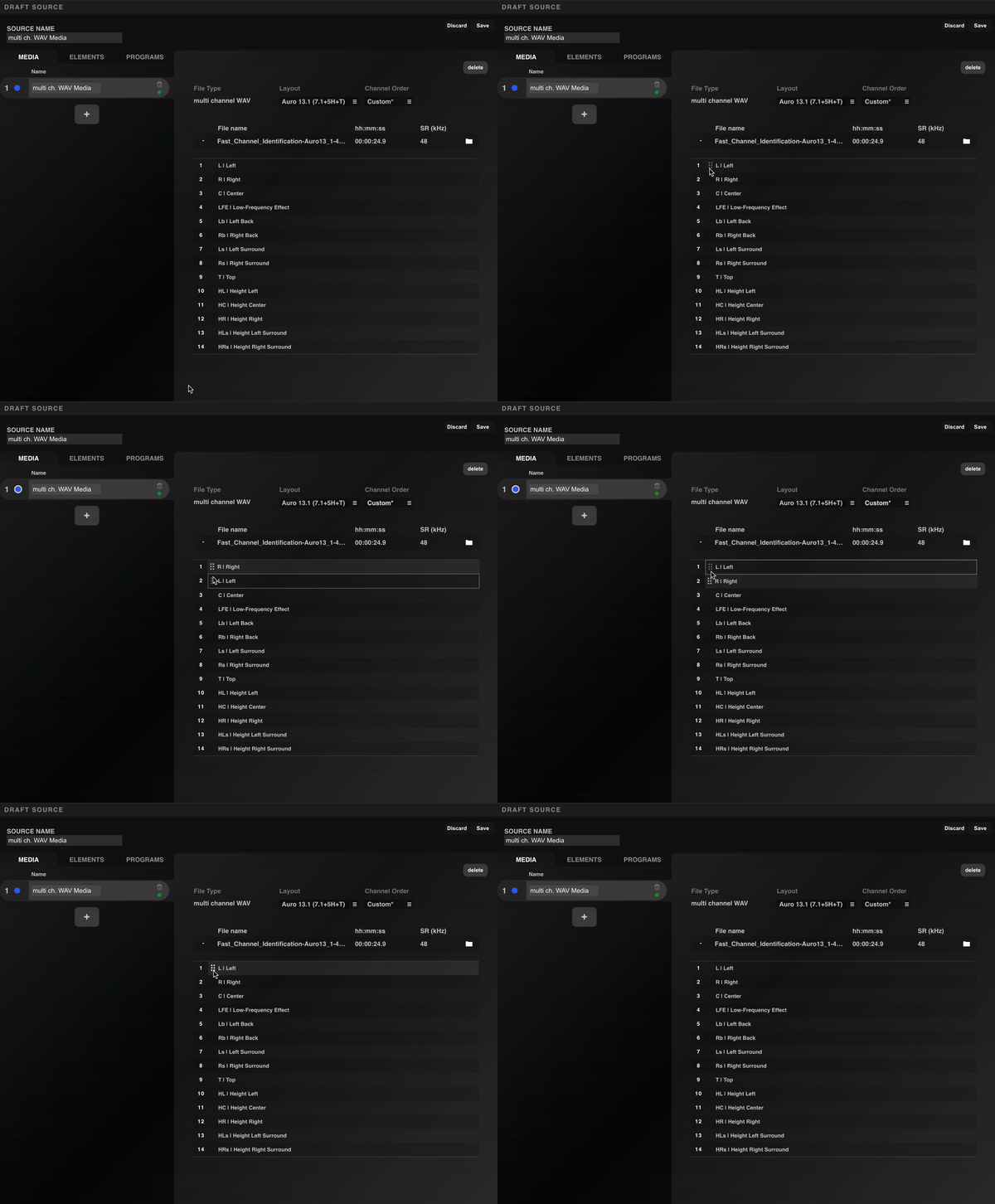
Figure 3.1.2.1.3 – 2 | Manually Organising the Channel Order of a multi channel WAV Source
This flexible mechanism allows for flexibility to import multi-channel files according to any specific needs.
2.1.4 Creating a Source Based on Dual Multi-Channel WAV Files
To cater to the preferences of many audio engineers who opt to export their 3D audio mix as two separate multi-channel WAV files, distinguishing the lower layout from the height layout, the AURO-3D® Encoder Service offers a specialised feature called the “dual multi ch. WAV” option.

Figure 3.1.2.1.4 – 1 | Combining two multi channels WAV files into a single source
When selecting the “dual multi ch. WAV” option, the effortless merging of two multi-channel WAV files into a single source becomes possible.
The Upload Table will reflect this selection by displaying two rows: L (representing the Lower layout) and H (representing the Height layout).
Simply clicking on the folder-shaped icons next to each row will open a window where the desired multi channels WAV files can be selected for upload.
Once both files are specified, the system will automatically detect and apply the appropriate channel format and layout based on the specifications outlined in the WAVEX standard, commonly known as the ITU channel order, provided the specified files contain a defined channel mask.
In cases where files lack a defined channel mask, the system will intelligently deduce the most likely format based on the number of channels and the corresponding SMPTE channel order.
Just like the multi channel WAV source tupes, it is still perfectly possible to manually review and modify the channel order by dragging and dropping the channel lines as needed.
2.1.5 Creating a Source Accompanied by a TOC File
A TOC (Table of Contents) file is used to precisely segment individual tracks within continuous audio content. It is typically used with a single media file in the source, but it will still function if multiple media files are present. This XML file ensures the accurate preservation of timecodes and organizes the segmented tracks during the encoding process. If the total duration of the audio content is shorter than the timecodes specified in the TOC file, the Statistics Panel will display the error message: “TOC duration exceeds file duration.” However, if the audio content exceeds the timecodes in the TOC file, the encoder will discard any audio beyond the specified timecodes, without affecting the rest of the content.

Figure 3.1.2.1.5 – 1 | Accompanying an Existing Media with a TOC File
The number of tracks retrieved from the TOC file can be viewed directly in the detailed view of the TOC media in the Media Tab, as well as next to the corresponding Source Name in the Source List in the Main View. Once this type of source is added to the queue, the system will automatically create as many sessions as there are tracks defined in the TOC file.

Figure 3.1.2.1.5 – 2 | Resulting Sessions After Adding a TOC Source to the Encoding Queue List
ℹ️ Remark: To prevent errors and ensure a smooth encoding process, adding a source to the queue is disabled while in Edit Mode. Exiting Edit Mode, either by saving the current source or discarding changes, is required before proceeding with adding the source to the queue.
2.2 Elements Tab
The Elements Tab in the AURO-3D® Encoder Service provides tools for managing different types of audio elements linked to existing Medias. These Elements can either be extracted from an ADM File or connected to a single WAV Media type. Elements originating from ADM files are visually distinguished with a greenish highlight in the sidebar. Additionally, users can manually create new Bed or Object Elements by clicking the “+” button in the sidebar and configure any new elements in their respective detailed views. It’s important to note that in the current version of the AURO-3D Encoder, the output remains purely channel-based, even when object elements are included in the source.
Each Element can be manually renamed in the sidebar, allowing for easier identification and organization within the project.

Figure 3.1.2.2 – 1 | Overview of the Elements Tab
2.2.1 Bed Elements
A Bed Element refers to channel-based audio content. These elements serve as the foundational layer of an audio mix, providing a fixed auditory backdrop in the spatial sound field. Unlike dynamic audio objects that can shift or move, bed elements maintain a consistent position, contributing to the stable framework of the mix.

Figure 3.1.2.2.1 – 1 | Bed Element Properties
The parameters of Bed Elements enable fine-tuning of transmixing, downmixing, and dynamic behaviors for the encoding process of the selected source. The distinct values for each parameter can be directly configured in the Detailed View of the selected Bed Element.
Some of these parameters are exclusively available for specific types of layouts. For instance, the ‘Discard Channels’ parameter is pertinent only to a 7.1-based layout. Similarly, the ‘Top Mods to Heights’ parameter is only present for layouts that contain Top Mids channels, and the ‘Wides to Front’ is only accessible for layout that contain Wide Channels. It is also crucial to note that downmix parameters, such as the ‘Top, Height, and Lower Gains’ parameters configured in the Source, will only take effect in the encoding process after selecting the ‘Source’ option for the Downmix Gains parameter in the global Configurations Menu; a distinct menu from the Source Menu.
• Sound Source Drop Down Menu: Allows the selection of the media source for the bed element, such as mono or multi-channel WAV files.
• Delete Button: Deletes the bed element from the source.
• Preset Buttons:
• Apply Default: Apply the currently saved user preset to all parameters.
• Set as Default: Saves the current values of all present parameters in the user preset.
• Reset: Resets the values of all parameters to factory default.
• 3D Scene: A visual representation of the bed element’s position in the 3D sound field.
• Downmix Parameters:
⚠️ In the current version of the Auro Encoder Service, the Downmix Gains values influence both the bed and all object elements within the source. This behavior is scheduled for revision in a future update.
• Lower Gain: This parameter allows for the adjustment of how the original lower layer of the immersive mix will be downmixed into the 6 or 8 channels encoded carrier and played back dynamically on a surround configuration. The downmix level can be fine-tuned from 0 dB to -24 dB. It is often recommended to set a maximum value of -9 dB to avoid potential issues with the signal-to-noise ratio in the encoded channels. It is also important to remember that the Downmix Gains Drop Down Menu in the Configurations Menu must be set to ‘Source’ to enable and apply the Lower Gain value.
• Height Gain: Similarly, this parameter also allows for the adjustment of how the original height layer of the immersive mix will be downmixed into the 6 or 8 channels encoded carrier and played back dynamically on a surround configuration. Again, the downmix level can be fine-tuned from 0 dB to -24 dB. It is often recommended to set a maximum value of -9 dB to avoid potential issues with the signal-to-noise ratio in the encoded channels. It is also important to remember that the Downmix Gains Drop Down Menu in the Configurations Menu must be set to ‘Source’ to enable and apply the Height Gain value.
• Top Gain:This downmix parameter is only relevant for layout that contains a Top layer. This parameter allows for the adjustment of how the original Top layer of the immersive mix will be downmixed into the 6 or 8 channels encoded carrier and played back dynamically on a surround configuration. Again, the downmix level can be fine-tuned from 0 dB to -24 dB. It is often recommended to set a maximum value of -9 dB to avoid potential issues with the signal-to-noise ratio in the encoded channels. It is also important to remember that the Downmix Gains Drop Down Menu in the Configurations Menu must be set to ‘Source’ to enable and apply the Top Gain value.
• Auto Gain:
• AutoGain: When the Auto Gain button is activated, it automatically adjusts the Encoded Downmix levels to prevent potential audio saturation in certain encoded channels. This saturation issue may occur during the encoding process when summing 2 or 3 channels (e.g. L and HL channels, or L, HL and T channels) into one encoded channel (e.g. encoded L channel). The behaviour of this dynamic tool can be further adjusted using the corresponding Release, Balance and Limiter parameters.
• AutoGain Limiter Max dB: Sets the ceiling value for the Auto Gain mechanism, ensuring that the audio remains within a desired dynamic range and avoids clipping or distortion during the encoding process.
• AutoGain Release: The Release drop-down menu is available only when the Auto Gain button is activated. The release time corresponds to the total time it takes for the signal to return to its original state after being trimmed by the Auto Gain mechanism. Release times of 0.1, 0.5, 1, 5, 10, and 50 seconds are available for selection. The default value is set to 1 second.
• AutoGain Balance: The Balance Drop Down Menu is only accessible if the Auto Gain Button is activated. This parameter lets you modify the behaviour of the Auto Gain mechanism. Its default value “50” implies that the trim effects will be identical and equally applied to all channels. Lower values (e.g. 30, 40) cause the lower channels to be more subjected to the trim effects.
Inversely, higher values (e.g. 60, 70) cause the height channels to be more subjected to the trim effects.
• Remap Parameters:
• Discard Channels: This feature allows for the selective discarding of surround or back channels during the encoding process, enabling downmixing from a higher channel format to a lower channel format. For example, a 7.1-based immersive audio source, such as Auro 11.1 (7.1+4H), can be downmixed to a 5.1-based encoded format, such as Auro 9.1 (5.1+4H). This downmixing process involves selectively omitting audio channels to create a new audio format with fewer channels. It’s important to note that this downmixing technique may result in some loss of audio information, particularly for mixes that include moving audio elements. However, it can sometimes be a useful option for projects based on 3D field recording techniques that require downmixing for compatibility with lower channel format playback systems. Note that when the option “Discard Surrounds” is selected, the original back channels will end up in the surrounds channels of the encoded result.
• Top Mids to Heights: This feature allows you to determine how Top Mid channels will be trans-mixed in the Auro-3D format. You can evenly distribute the Top Mid channels into the Height Left, Height Right, Height Center (if applicable), Height Left Surround, and Height Right Surround encoded channels by selecting the option ‘to Height Fronts and Backs’. Alternatively, you can trans-mix them into the Center Top channel (if applicable) by choosing the option ‘Center Top’. This parameter is available only when relevant and depends on the Source layout and the Rendering layout of the Source.
• Wides to Front: This option allows you to determine the extent to which the Wide channels will be trans-mixed into the front channels of the encoded Auro-3D format by specifying the ‘Wide to Fronts’ percentage. A setting of 100% results in moving the Wide channels completely to the Left and Right channels of the encoded layout, while 0% results in the complete absence of the original Wide channels in the front.
• Loudness Measurement: Automatically calculates the loudness for the bed element, including Integrated Loudness, Loudness Range, and related metrics.
2.2.2 Object Elements
An Object Element contains audio content paired with metadata, defining its spatial positioning. Its initial vector-based position can be viewed in both 3D and 2D coordinate systems within the Edit View. Object Elements can either be imported from an ADM file (indicated by a greenish color) or manually created, in which case they are represented in grey.

Figure 3.1.2.2.2 – 1 | Object Element Properties
The Object Elements Parameters allow for adjusting the properties of Object Elements. If the objects originate from an ADM file, the corresponding ADM Media must first be unlocked to enable modifications. When an object extracted from an ADM file is altered, a prominent message appears at the top of the Object Element’s Detailed View: “This Object was manually modified, so any of the settings (including eventual dynamic behavior) will be overruled!”. While the system can preserve dynamic movements of Object Elements retrieved from ADM files, it’s important to note that in the current version of the Auro Encoder Service, once modifications are made, only a static position can be set for these elements. If needed, pressing the “Reset” button under the message will revert the object’s properties to their original state.
• Sound Source Drop Down Menu: Allows the selection of the media source for the bed element, such as mono or multi-channel WAV files.
• Delete Button: Deletes the object element from the source.
• Reset Button: This button appears only after any properties of an Object originating from an ADM File Media have been modified. Pressing it will reset the object to its original status. It is worth reminding that once the object’s position is modified, it becomes static and loses any dynamic behavior it may have had in the original ADM file.
• Horizontal Plane: An interactive grid that enables adjustment of the object’s position along the X and Y axes by dragging the blue circular icon. This feature allows precise control over the object’s placement in the 2D plane.
• Vertical Plane: An interface that allows adjustment of the object’s position along the Z axis, controlling its height within the sound field. This enables precise vertical placement for a more immersive audio experience.
• 3D Scene: Provides a visual representation of the object’s position in the 3D space, reflecting changes made in the horizontal and vertical planes.
• Levels:
• Gain: Controls the object’s volume.
• LFE Send: Determines how much of the object’s signal is sent to the subwoofer channel.
• Position & Spread:
• X, Y, Z: Controls the object’s position along the X, Y, and Z axes.
• Spread: Adjusts how widely the object’s sound is dispersed.
• Snap: Locks the object to the nearest grid point when adjusting its position.
• Static Label: Indicates whether the current object’s position is dynamically changing over time (0) or if the object’s position is static (1). This label helps distinguish between dynamic and fixed positioning of the object.
• Loudness Measurement: Provides metrics like Integrated Loudness, Loudness Range, and other related loudness measurements for the object.
2.2.3 Object Group Elements
Object Group Elements consist of multiple objects grouped together. At present, this type of element is exclusively retrieved from scanned ADM files. However, it remains fully possible to modify any individual object within the group by selecting it from the sidebar in the Elements Tab for further customization.

Figure 3.1.2.2.3 – 1 | Object Group Element Properties
• Members: Lists all objects within the group. Each object is displayed with its name and type. Selecting an object allows for individual modifications of its properties.
2.2.4 Switch Group Elements
A Switch Group Element allows for switching between different objects based on specific scenarios, such as multi-language dialog tracks or alternate audio versions. Just like Object Group Elements, Switch Group Elements are exclusively retrieved from scanned ADM files. Only one object from the switch group can be active at a time, and in the current version of the AURO-3D Encoder, only the selected object will be encoded and printed as channel-based content.

Figure 3.1.2.2.4 – 1 | Switch Group Element Properties
• Members: Displays all objects within the switch group. The currently selected object is highlighted, and only this object will be printed as channel-based content in the final output.
Note that objects included in a switch group may contain additional metadata, such as information regarding their “language.” The current version of the system retrieves this data and clearly displays it in the object’s detailed view.

Figure 3.1.2.2.4 – 2 | Language Properties of an Object within a Switch Group Element
ℹ️ Reminder: All elements retrieved from ADM files are converted to channel-based content during the final encoding process.
2.3 Program Tab
The Program Tab in the AURO-3D® Encoder Service is designed to manage and organize elements, such as Beds and Objects, into a unified program for final output. The current version of the Auro Encoder Service supports only one Main Program per source. In this tab, it is possible to add or remove elements from the program, trim the level of each Element, and check the input loudness levels for compliance.

Figure 3.1.2.3 – 1 | Overview of the Program Tab
2.3.1 Program Name Input Field
The name of the Program that is set to “Default Progr” by default. However, it is possible rename the program in the Program Name Input Field located in the side-bar.
2.3.2 Properties Section
The Properties Section provides essential settings related to the Program.

Figure 3.1.2.3.1 – 1 | Overview of the Program Tab
• Objects Output Format: If the source contains Object Elements, the “Object Output Format” drop-down menu becomes active, enabling the selection of various relevant output layouts, in which all Objects and Bed Elements will be rendered accordingly. However, if the source does not contain any Object Elements, the “Object Output Format” is disabled (greyed out), and the output layout will solely depend on the settings of the Bed Element.
2.3.2.1 Elements List
The Elements List displays all available Elements that can be added to or removed from the program. These elements can be used to form the final mix, and the interface allows for easy management of which elements should be included or excluded. Each element is listed by name, and a status indicator light shows whether the element is currently part of the program or not.
• Add Button: Adds the currently selected element from the Elements List to the program.
• Add All Button: Quickly adds all available elements from the Elements List to the program in one click.
• Remove Button: Removes the selected element from the program.
• Remove All Button: Removes all elements from the program, clearing the entire selection.
2.3.2.2 Program Elements
This section shows the elements that are effectively included in the program. Each Element, whether Bed or Object, is represented by its name and type. Users can modify specific settings, such as gain and loudness, directly within this list. The loudness measurement for each element is also displayed, ensuring that each component of the mix complies with the overall loudness goals.
• Gain Slider: A slider to adjust the gain for each element, allowing fine-tuned control over the volume balance between elements.
• Loudness Meter: Displays the current integrated level of the element in LUFS, helping monitor the loudness of each individual element within the program.
2.3.2.3 3D Scene
The 3D Scene is a visual representation of the spatial layout of elements within the program. This feature provides an interactive view of how the elements are positioned in the 3D audio field. It is particularly useful for visualizing how the beds and objects interact with each other in space and for understanding how the final audio will be perceived in an immersive environment. Selecting one or more Element in the Program Elements List will automatically highlight their corresponding representations in the 3D Scene
2.3.2.4 Program Loudness
The Program Loudness section provides real-time measurements of the loudness levels of the entire program. This section is essential for ensuring compliance with loudness standards and provides detailed information about the loudness profile of the program, including peak levels, short-term loudness, and integrated loudness. Keeping track of these metrics helps maintain consistent loudness across different elements and output formats.
• Integrated: Measures the average loudness of the entire program, calculated over the duration of the mix.
• Loudness Range: Indicates the dynamic range within the program, showing the difference between the loudest and quietest parts.
• Max Momentary: Displays the highest loudness measured over a brief time window (400ms), indicating short-term peaks in the audio.
• Max Short Term: Shows the highest loudness level measured over a three-second window, providing insight into louder moments in the mix.
Remark: The Program Tab is vital for managing the arrangement and behavior of beds and objects within the final audio mix. Each program allows for precise control over how elements are organized.
2.4 Metadata Tab
A source can include metadata defined in the Metadata Tab. The original file metadata from .wav or .bwf files, including the cover image, can be automatically parsed by enabling “Copy Metadata from File” in the global settings (see Chapter 3.9).
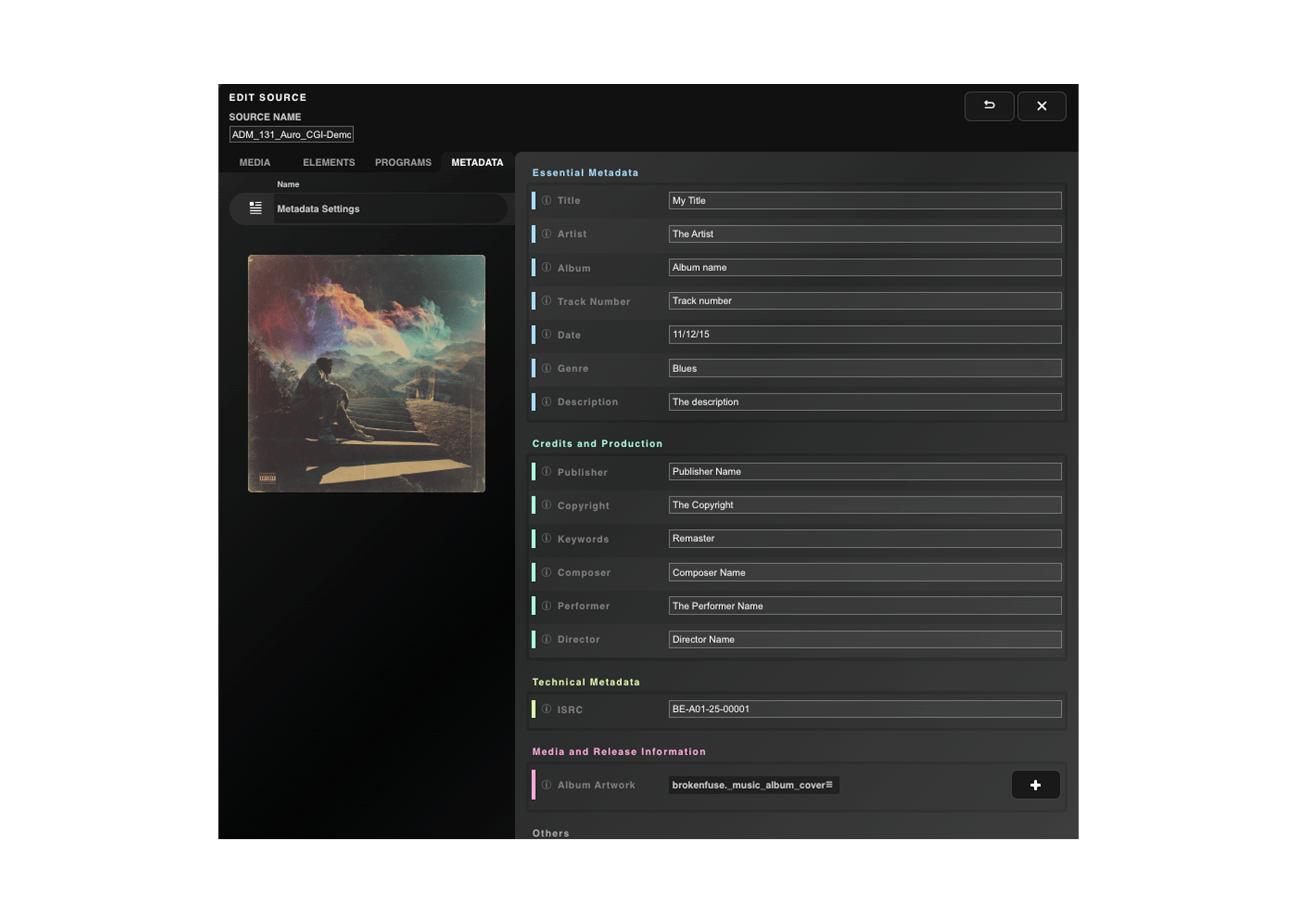
Figure 3.1.2.4 – 1 | Overview of the Metadata Tab
Most metadata types are text-based, except for the cover image, which can be in either .jpg or .png format. The cover image can be added directly from the Metadata Tab by clicking the “+” button in the Media category. This action automatically creates the corresponding image media entry in the Media Tab. Likewise, it is possible to first add an image in the Media Tab and then link it in the Metadata Tab by selecting it from the corresponding drop-down menu.
All metadata are embedded in the final encodings for .wav and .flac formats when using the Auro-Codec, Auro-Headphones, or Convert configuration types. Auro-CX encodings do not yet support metadata—this functionality will be added in a future update.
The metadata included in the final encoding are managed through the Metadata Management table in the global settings (see Chapter 3.9).